# Django Tutorial | Not a Movie, but a Python Framework to Create Websites
**See the code of the tutorial in [this](https://github.com/jsulopz/django-tutorial) GitHub repo.**
## Set up your Machine
> What do I need to start a `Django` project?
- It is recommended that you create a new environment
- And that **you have `Anaconda` installed**. If not, click [here](https://www.anaconda.com/products/individual) to download & install
- You need to install the library in your `terminal` **(use Anaconda Prompt for Windows Users)**:
```shell
conda create -n django_env django
conda activate django_env
```
## Start the Django Project
> Ok, you got it. What's next?
- **Open a Code Editor application** to start working more comfortable with the project
- I use Visual Studio Code (aka VSCode), you may download & install it [here](https://code.visualstudio.com/download)
> What should I do within VSCode?
- You will use the `Django CLI` installed with the `Django` package already
- To **create the standard folders and files** you need for the application
- Type the following line within the `terminal`:
```shell
django-admin startproject shop
```
> What should I see on my computer after this?
1. If you open your `user folder`, you will see that
2. A folder `shop` has been created
3. `drag & drop` it to VSCode
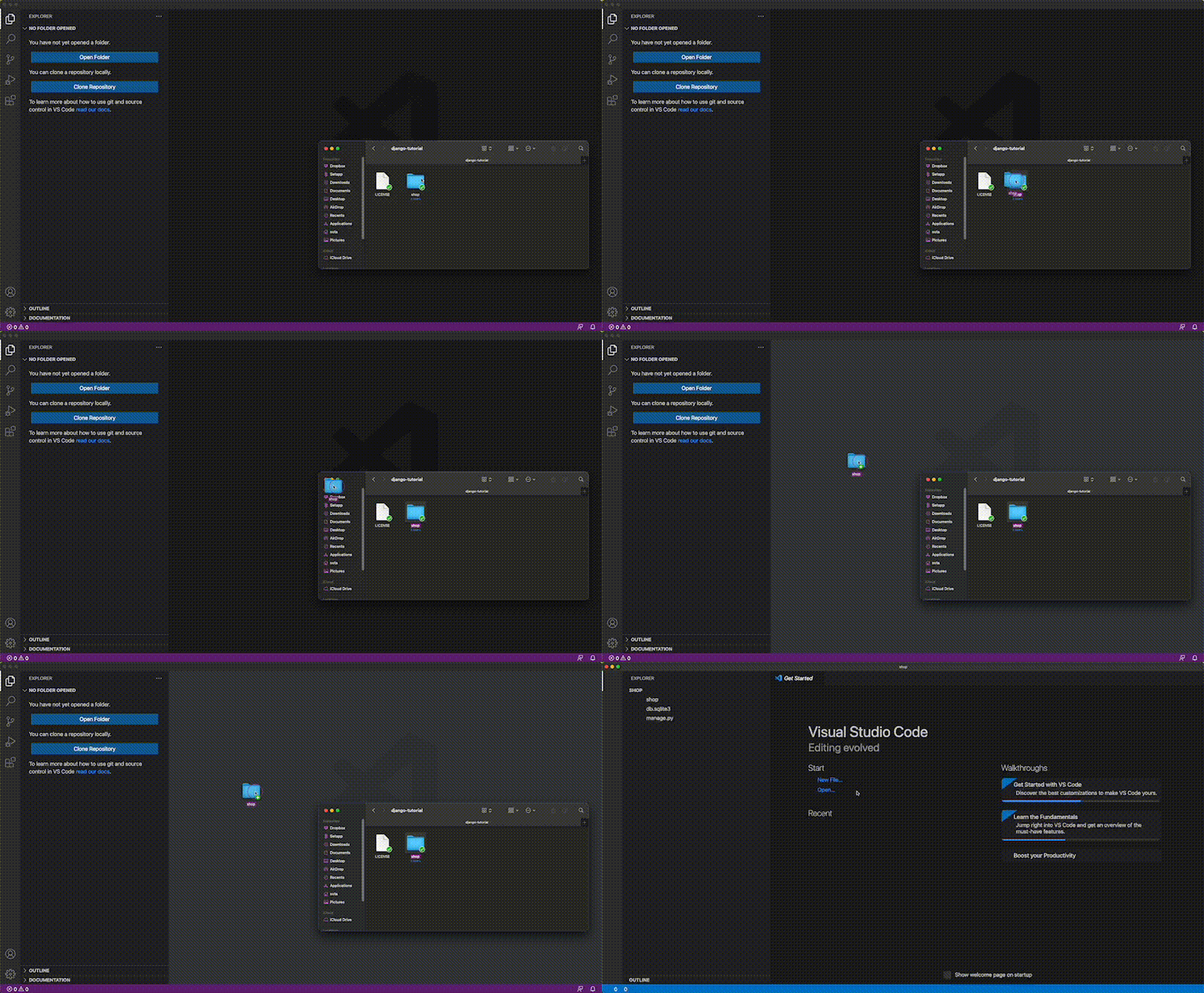
4. Now check the folder structure and familiarize yourself with the files & folders
- The folder structure should look like this ↓
```shell
- shop/
- manage.py
- shop/
- __init__.py
- settings.py
- urls.py
- asgi.py
- wsgi.py
```
> Do I need to study all of them?
- No, just go with the flow, and you'll get to understand everything at the end

## See the Default Django Website
> Ok, what's the next step?
- You'll probably want to see your Django App up and running, right?
- Then, go over the `terminal` and write the following ↓
```shell
cd shop
python manage.py runserver
```
- A local server has opened in http://127.0.0.1:8000/, open it in a `web browser`
- Which references the `localhost` and you should see something like this ↓
> What if I try another `URL` like http://127.0.0.1:8000/products?
- You will receive an **error** because
- You didn't tell Django what to do when you go to http://127.0.0.1:8000/products
> How can I tell that to Django?
## Create an App within the `shop` Django Project
- With the following line of code ↓
```shell
python manage.py startup products
```
### The URL
- Create an URL within the file `shop > urls.py`
```python
from django.contrib import admin
from django.urls import path, include # modified
urlpatterns = [
path('products/', include('products.urls')), # added
path('admin/', admin.site.urls),
]
```
### The View
1. Create a `View` (HTML Code) to be recognised when you go to the `URL` http://127.0.0.1:8000/products
- Within the file `shop > products > views.py`
```python
from django.http import HttpResponse
def view_for_products(request):
return HttpResponse("This function will render `HTML` code that makes you see this text in red
.")
```
- See [this tutorial](https://www.w3schools.com/html/) if you want to know a bit more about `HTML`
2. Call the function `view_for_products` when you click on http://127.0.0.1:8000/products
- You need to create the file `urls.py` within products → `shop > products > urls.py`
```python
from django.urls import path
from . import views
urlpatterns = [
path('', views.view_for_products, name='index'),
]
```
### Connecting Project URLs with App URLs
> Why do we reference the `URLs` in two files? One in `shop/urls.py` folder and the other in `products/urls.py`?
- It is a best practice to have a `Django` project separated by different `Apps`
- In this case, we created the `products` App
- In our the file `shop/urls.py`, you reference the `products.py` URLs here ↓
```python
urlpatterns = [
path('products/', include('products.urls')), #here
path('admin/', admin.site.urls),
]
```
- So that at the time you navigate to `https://127.0.0.1:8000/products`
- You will have access to the URLs defined in `shop/products/urls.py`
- For example, let's create another View in `shop/products/views.py` ↓
```python
def new_view(request):
return HttpResponse('This is the new view')
```
- And reference it in the file `shop/products/urls.py`
```python
from django.urls import path
from . import views
urlpatterns = [
path('', views.view_for_products, name='index'),
path('pepa', views.new_view, name='pepa'), # new url
]
```
- We don't need to reference the View in `shop/urls.py` since
- we can access all URLs in `shop/products/urls.py` at the time we wrote
- `include('products.urls')` in the file `shop/urls.py`
- Try to go to https://127.0.0.1:8000/products/pepa
## Summary
> So, each time I want to create a different `HTML`, do I need to create a View?
- Yes, it's how the Model View Template (MVT) works ↓
1. You introduce an `URL`
2. The `URL` activates a `View`
3. And `HTML` code gets rendered in the website
> Why don't you mention anything about the `model`?
- Well, that's something to cover in the following article 🔥 COMING SOON!
Any doubts?
Let me know in the comments; I'd be happy to help!